
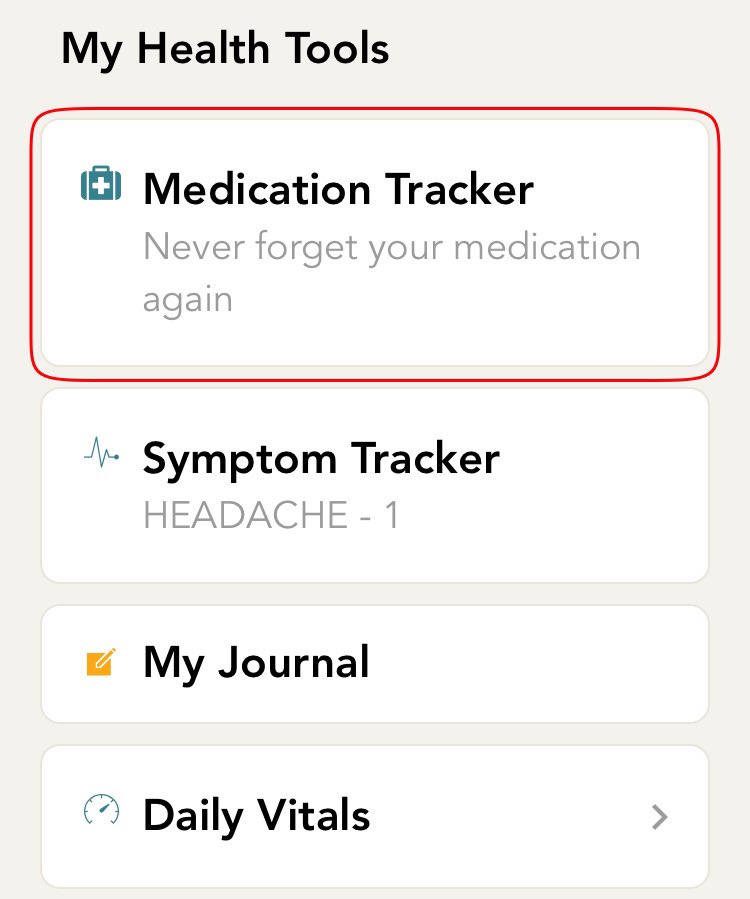
- From the home screen, click on the medication tracker card.
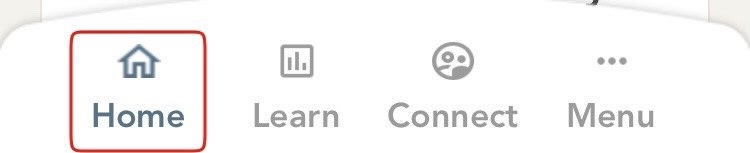
- If you are not on the home screen, click on the home icon which is on the bottom bar of your screen.
-
You will now be directed to the set up screen. Type the name of the medication which you would like to add. As you start typing, there will be a list of matching medication names that appear, click on the one which you would like to add.
-
The next screen is for you to set reminders for your medication. Here you have the ability to create a recurring schedule for your medication.
-
Create a Daily Reminder - From the medication set up screen, under the ‘Frequency’ header, click to open a list of reminder types you can create. Click ‘Daily’ to receive a daily reminder.
- Click on the field called ‘How Many Time(s) A Day’ that appears. Here you have the ability to create multiple reminders for a day. Click on the option that you would like to choose.
- The reminder section(s) will now appear and by default, the reminder time is set to 9 AM. Click on this to change the time. Scroll through the spinner to choose a time and then click on the ‘Select’ button.
- Click on the ‘Next’ button located at the top right corner of the screen. Under the ‘Extra Notes’ header in the text area that appears, you can type notes related to your medication. This is an optional field and can be left blank
- Click on the ‘Finish’ button located at the top right corner of the screen, to save the medication information.
- You will receive a pop up confirming the medication and the reminder you added. Click Yes to confirm or click No to go back and make changes.
-
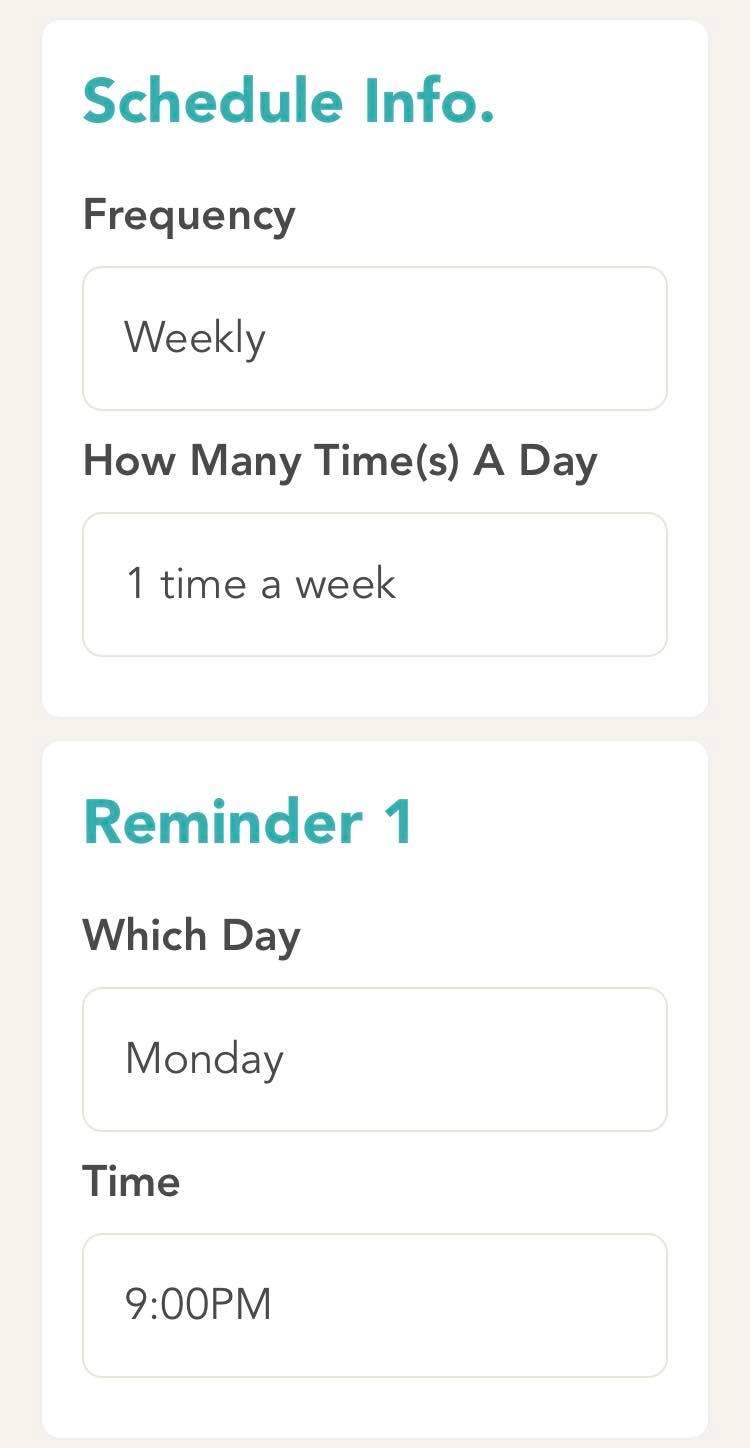
Create a Weekly Reminder - From the medication set up screen, under the ‘Frequency’ header, click to open a list of reminder types you can create. Click ‘Weekly’ to receive a weekly reminder.
- Click on the field called ‘How Many Time(s) A Week’ that appears. Here you have the ability to create multiple reminders for a week. Click on the option you would like to choose.
- The reminder section(s) will now appear and by default, weekly reminder will be created for Monday at 9 AM. Under the ‘Which Day’ header, click to open the days of the week. Click on the day you would like to be reminded. Under the ‘Time’ header, click to change the reminder time.
- Click on the ‘Next’ button located at the top right corner of the screen. Under the ‘Extra Notes’ header in the text area that appears, you can type notes related to your medication. This is an optional field and can be left blank.
- Click on the ‘Finish’ button located at the top right corner of the screen, to save the medication information.
- You will receive a pop up confirming the medication and the reminder you added. Click Yes to confirm or click No to go back and make changes.
-
Create a Monthly Reminder
- From the medication set up screen, under the ‘Frequency’ header, click to open a list of reminder types you can create. Click ‘Monthly’ to receive a monthly reminder.
- Click on the field called ‘How Many Time(s) A Month’ that appears. Here you have the ability to create multiple reminders for a month. Click on the option that you would like to choose.
- The reminder section(s) will now appear and by default, monthly reminder will be created for the 1st day of the month at 9 AM. Under the ‘Which Day’ header, click on the day of the month you would like to receive the reminder. Under the ‘Time’ header, click to change the reminder time. Scroll through the spinner to choose a time and then click on the ‘Select’ button.
- Click on the ‘Next’ button located at the top right corner of the screen. Under the ‘Extra Notes’ header in the text area that appears, you can type notes related to your medication. This is an optional field and can be left blank.
- Click on the ‘Finish’ button located at the top right corner of the screen, to save the medication information.
- You will receive a pop up confirming the medication and the reminder you added. Click Yes to confirm or click No to go back and make changes.
-
Create a Days Interval Reminder
- From the medication set up screen, under the ‘Frequency’ header, click to open a list of reminder types you can create. Click ’Days Interval’ to receive a reminder after a fixed interval of days.
- Click on the field ‘Remind Me Every’ that appears. Here you have the ability to define the interval. Click on the option that you would like to choose.
- Click on the field ‘How Many Time(s) A Day’ that appears. Here you have the ability to create multiple reminders for a day. Click on the option that you would like to choose.
- Click on the field ‘Start Date’ that appears. Here you have the ability to select the date from when you would like to receive reminders. Scroll through the dates to find the date you are looking for and then click on ‘Select’.
- The reminder section(s) will now appear and by default, the reminder time is set to 9 AM. Click on this to change the time. Scroll through the spinner to choose a time and then click on the ‘Select’ button.
- Click on the ‘Next’ button located at the top right corner of the screen. Under the ‘Extra Notes’ header in the text area that appears, you can type notes related to your medication. This is an optional field and can be left blank.
- Click on the ‘Finish’ button located at the top right corner of the screen, to save the medication information.
- You will receive a pop up confirming the medication and the reminder you added. Click Yes to confirm or click No to go back and make changes.
-
No Reminder
- If you do not wish to receive any reminders for your medication, select the option 'As Needed (No Reminder)'.
Comments
0 comments
Please sign in to leave a comment.