
- From the home screen, click on the Daily Vitals card. If you are not on the home screen, click on the home icon which is on the bottom bar of your screen.

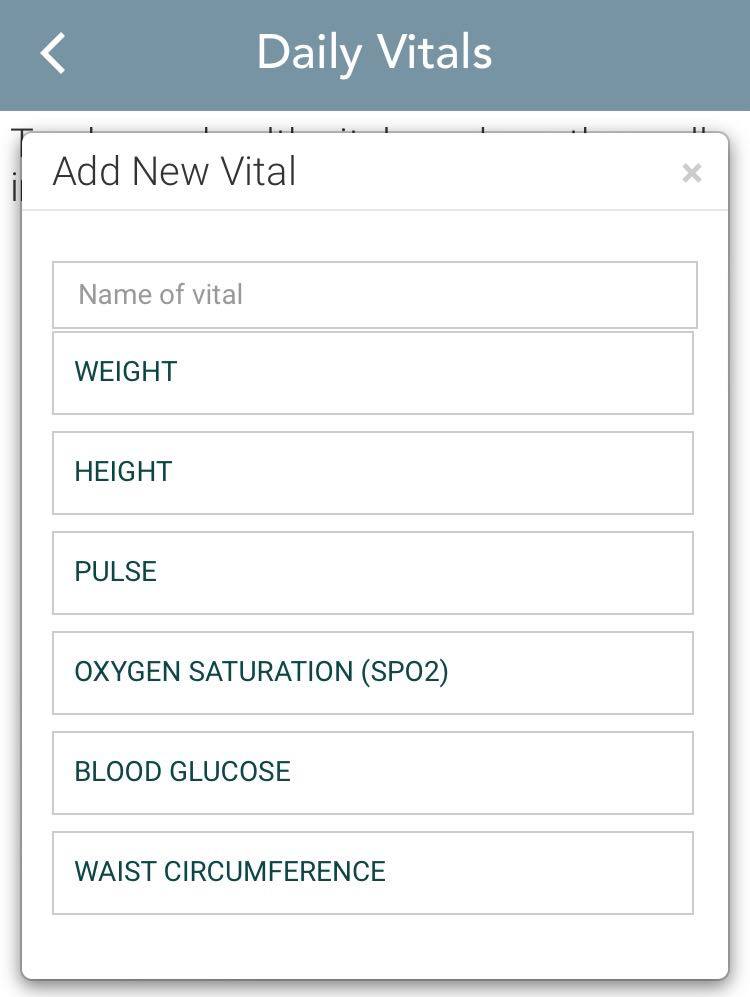
- Under the Daily Vitals header, click on the ‘Add Vitals’ button and select the vital from the popup box that appears or use the search bar to find a specific vital you are looking for.

-
Optionally, add notes regarding the vital in the next pop up box that appears.
-
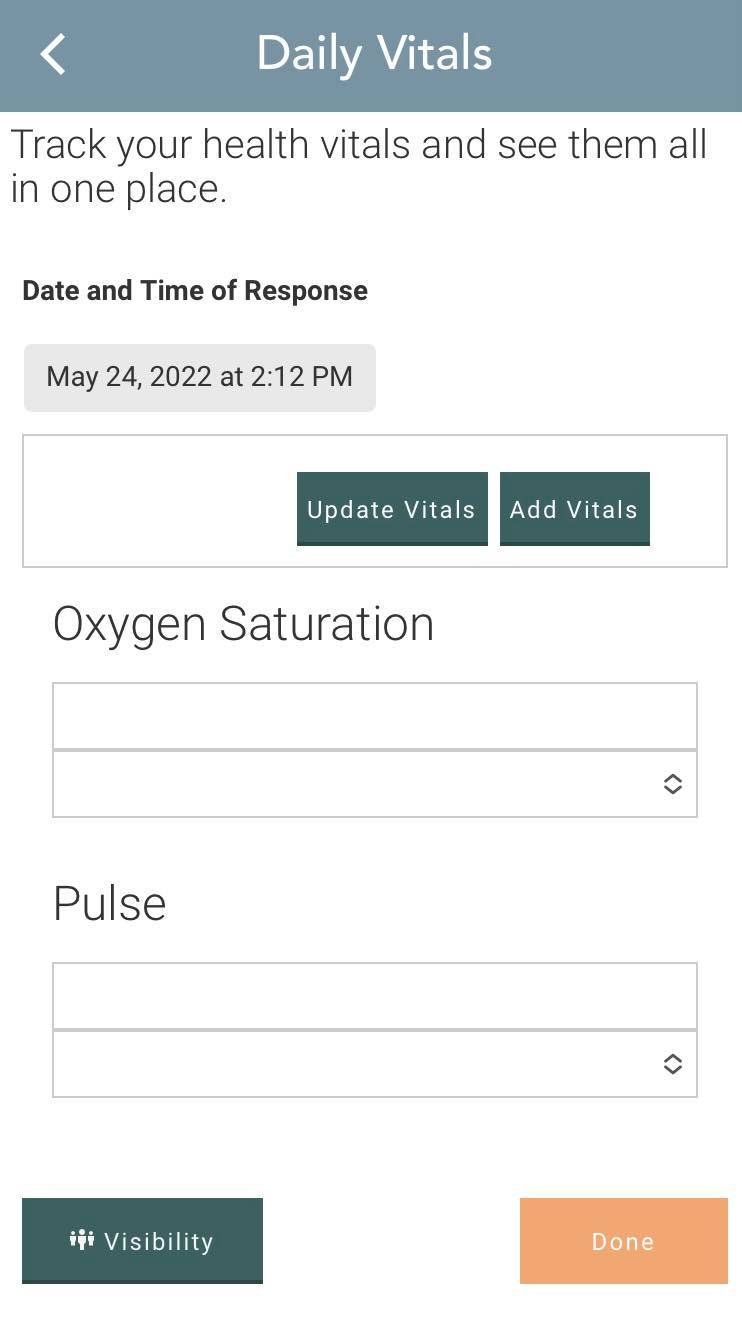
You will then see that the vital has been added. Enter a numeric value in the field that you see next to the vital. Optionally, to change the unit of measurement, click on the dropdown list and select a unit of your choice.
-
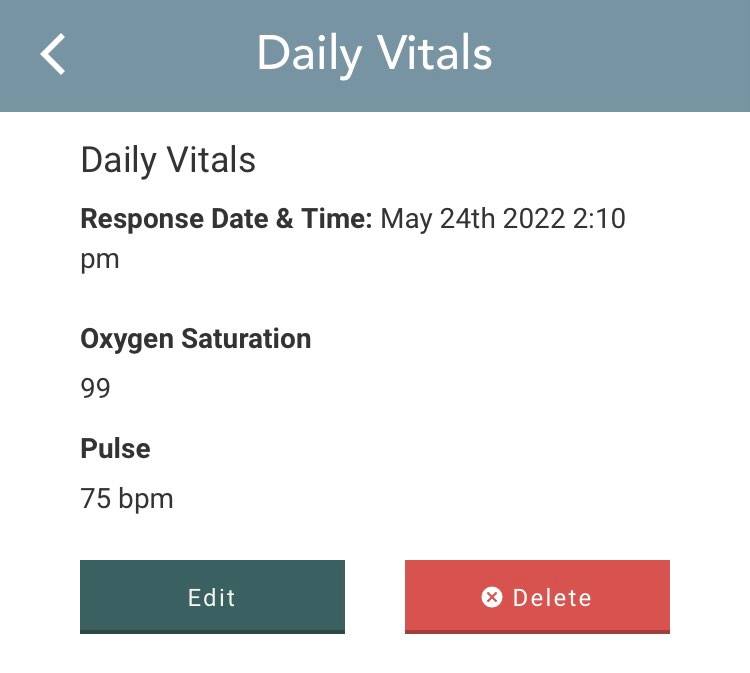
Once you enter a value for the vital, the save button gets enabled. On hitting the save button, you will be taken to a screen that shows a graph with all the vital entries made by you.
Comments
0 comments
Please sign in to leave a comment.